AskThePlans on Mobile
Most construction decisions happen on site, not at a desk. The mobile app is built for that reality — ask a question out loud, hear the answer read back to you, and keep your hands on the job. No typing, no scrolling, no stopping work.
Fully hands-free on site
Wearing gloves, standing in a trench, or arms full of materials — it doesn't matter. Tap the mic once and speak your question. AskThePlans searches your project documents and reads the answer back to you out loud. You never need to look at or touch the screen to get the information you need.
Siri integration
Say “Hey Siri, AskThePlans” to launch and ask without touching your phone at all.
Snap and upload on site
Take a photo of a sketch, notice, or site condition and add it to the project record instantly.
Download on the
App Store
Free to download · Requires an AskThePlans account
Select your project
When you open the app you'll see a list of all your projects. Each project shows its address, council, and current status. Tap a project to open it — this sets the context for everything else in the session, so all questions and files are scoped to that job.
The project workspace
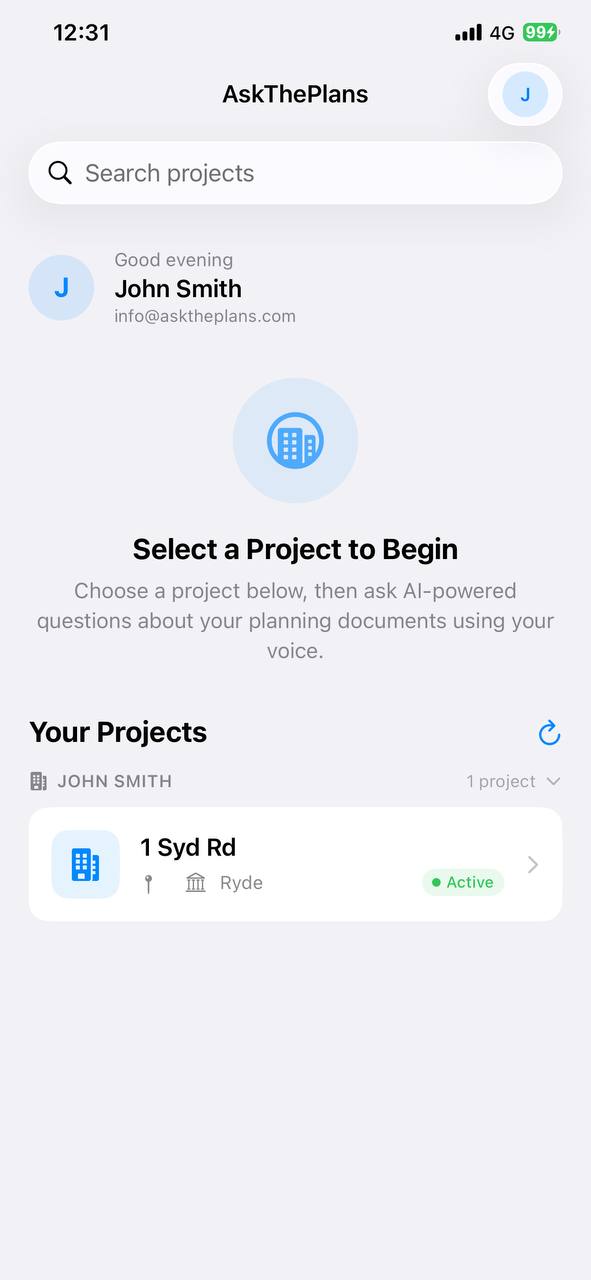
1 / 2
Open the voice interface
Tap Ask a Question to open the voice screen. You'll see a large microphone button at the bottom and a few example questions to give you a sense of what you can ask. The app is already connected to your project — it knows which documents have been uploaded. Tap the microphone to start, or use the keyboard icon on the left if you'd rather type.
Speak your question
The app searches your documents
The answer is read back to you
Get a second opinion
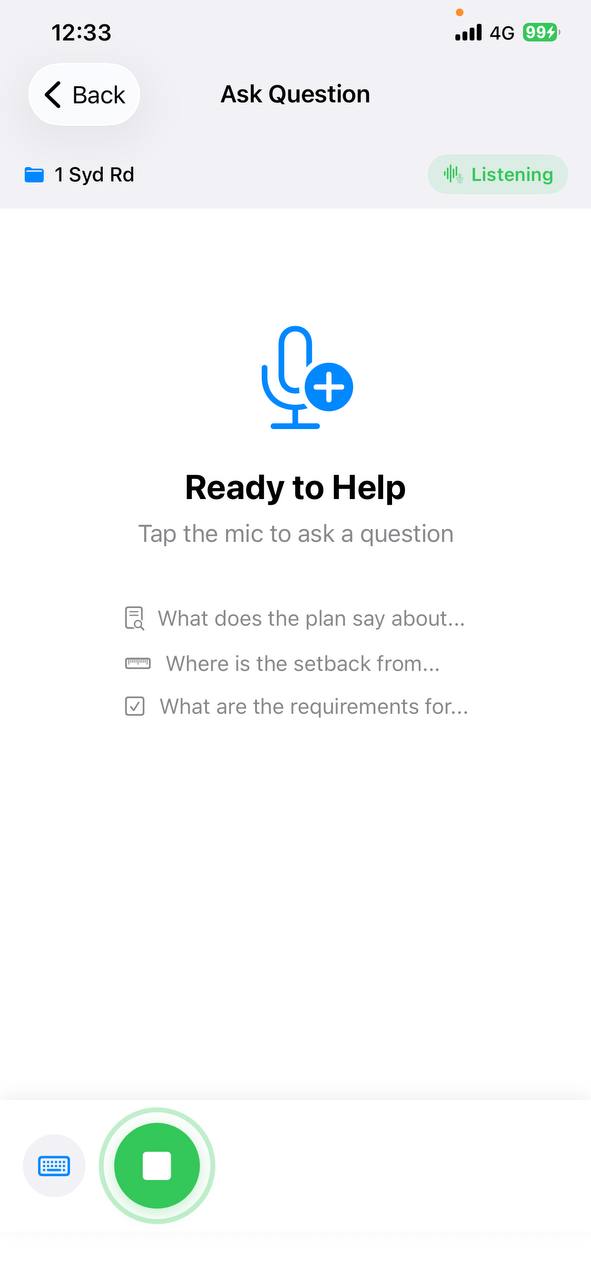
1 / 5
Go further — activate with Siri
AskThePlans has a Siri shortcut, so you can launch the app and start asking a question without taking your phone out of your pocket or touching the screen at all.
Say this to launch AskThePlans
“Hey Siri, AskThePlans”
The app opens straight to the voice screen and starts listening immediately. Your question is processed and the answer is read back to you — no screen interaction at any point. Genuinely useful when wearing work gloves, operating machinery, standing in a confined space, or when both hands are occupied on site. Set up the Siri shortcut from the Account screen inside the app.
Your phone camera is a document scanner
Anything you photograph on site can become part of your project record — a marked-up sketch, a hand-drawn revision, a materials delivery docket, a site condition you want to log, or a notice posted on the fence. Tap Photos when uploading and point your camera at it. The photo is added to your project files instantly and is available to the whole team. From that point on, you can ask AskThePlans questions about it just like any other uploaded document.
View uploaded files
Go back to the main menu and tap Files under Project Tools to see all documents uploaded to this project. Each file shows its name, size, and processing status — Ready means it has been fully analysed and is available for questions. Tap any file to see more detail, or tap the + button in the top-right to upload a new one.
Browse page classifications
Snap a photo and upload it instantly
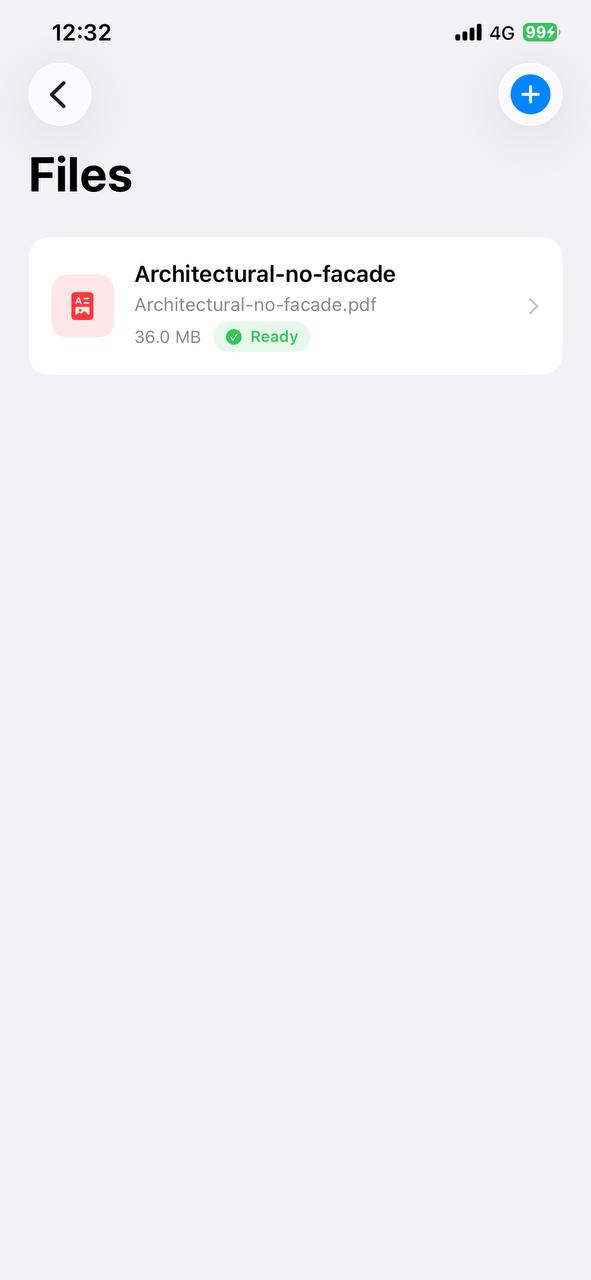
1 / 3
Complete feature reference
The complete list, for reference.
Asking by voice
- In-app voice mode with live speech transcript
- Text-to-speech answer playback
- Siri Shortcuts — ask without opening the app
- Automatic silence detection ends recording
Checking the answer
- Source citations with document and page number
- Tap-to-open PDF viewer for cited documents
- Thumbs up / down reactions on answers
- See team reactions to surface helpful answers
Asking a different agent
- Five agents — Architect, Builder, Certifier, Client, Tradie
- Second opinion — ask the same question as another agent
- Swipeable multi-agent response comparison
- AI-generated follow-up question suggestions
Projects and history
- Persistent conversation history by project
- Multi-turn threaded conversations
- Switch between all your projects in one app
- Pull-to-refresh for latest project data
- Secure credentials via iOS Keychain
- Works on iPhone and iPad
Back to
All Guides